← Back to the connection guide
1. Before you start
- Your personal Facebook account, only to sign in.
- A business portfolio for your business, or the details to create one during the process: legal name, email and website or Page.
- The number you will connect and the phone at hand, to receive the code or confirm from the app.
- Your business name decided (read section 3 before starting).
- A computer and about 15 uninterrupted minutes.
You don't need a Facebook Page for WhatsApp. Only the business portfolio.
2. Which number do you have? Choose your path
| Your number… | Can it be connected? | Path | “Keep using my WhatsApp Business app on my phone” switch |
|---|---|---|---|
| New, never had WhatsApp (or you deleted it) | ✅ Yes | A. SocialChat365 only. The number works only from the platform, not in a phone app. It is verified with a code by SMS or call. | Off |
| Has regular WhatsApp (the personal one) | ⚠️ Not as it is | First choose: move it to WhatsApp Business (the app lets you bring your chats) and follow path B, or delete the account on the phone (you lose the chats) and follow path A. | — |
| Has WhatsApp Business (the green app with the “B”) | ✅ Yes | B. Coexistence. You keep using the app on your phone and SocialChat365 works at the same time. You don't delete anything. | On |
Coexistence requirements (path B): the WhatsApp Business app must be version 2.24.17 or later and the number must have real use; Meta may reject newly created accounts. Don't uninstall the app and open it at least every 13 days: if the phone goes about 14 days without activity, Meta disconnects the number from the platform.
A number can only be in one portfolio at a time. If you already connected it to another portfolio or platform, you must remove it from there first (see common errors).
3. The display name: how to choose it well
It is the name your customers will see on WhatsApp. Meta reviews it and may reject it. Golden rule: write it exactly as on your sign, your Page or your invoice.
| ✅ Approved | ❌ Rejected | Why it is rejected |
|---|---|---|
| Cevichería Don Juan | CEVICHERIA DON JUAN | All caps (only acronyms are accepted, such as “ABC Seguros”) |
| Palet Roble | Juan | It is a person's name, not the business |
| Clínica Dental Sonrisa | Sales / Customer service | Generic: it doesn't say which business it is |
| Ferretería El Oro | Ferretería 🔧🔨!!! | Emojis or extra symbols |
| Orenses.com | TEST SOCIALCHAT | It is a test, not a business, and it is in all caps |
| Farmacia Santa Rosa | Farmacia Santa Rosa 24/7 Free Delivery | It adds advertising phrases |
Tip: on path B, Meta takes the name you have in the app and it cannot be edited inside the connection window. Fix it first in the app: Settings → Business tools → Business profile. After connecting, it is changed from WhatsApp Manager and goes through Meta's review again. The photo, description and hours can be changed at any time, without review.
4. Step by step: what you will see
Meta changes the wording and order of its windows from time to time. If something looks slightly different, follow the same idea.
- In SocialChat365: open the CRM → Channels and integrations menu → WhatsApp accounts → “Connect WhatsApp” button. Turn the “Keep using my WhatsApp Business app on my phone” switch on or off according to your path (section 2) and, if you want, choose the AI agent that will handle the number.
📷 Screenshot pending: WhatsApp accounts screen with the “Connect WhatsApp” button and the switch.
- Meta's window opens: “Easily connect your account with Trackex Developer Portafolio”. Trackex Developer Portafolio is the company that operates SocialChat365; it is normal to see it. Click Continue.
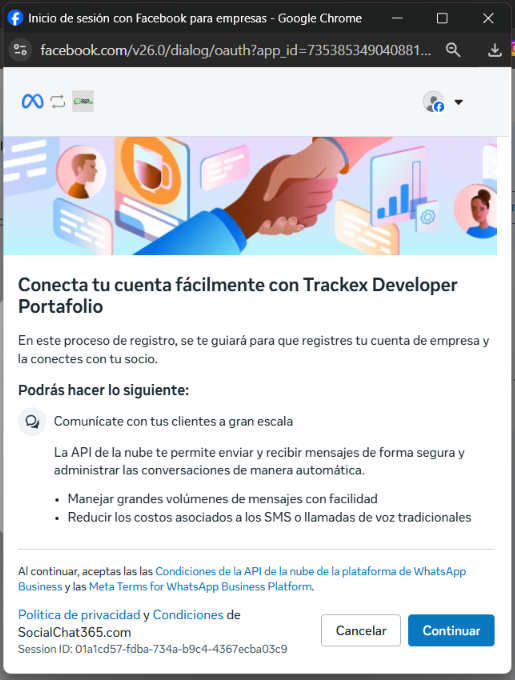
Meta's first screen. Click Continue. - Choose your business portfolio or create a new one with your business details.
📷 Screenshot pending: choose or create the business portfolio.
- Choose or create your WhatsApp Business account within that portfolio.
📷 Screenshot pending: choose or create the WhatsApp Business account.
- Add your number. This is where the paths split:
- Path A (new number): choose “Enter a new phone number”, type the number without the leading 0 (for example, 991234567 with the +593 code) and choose how to receive the code: text message or phone call. Then type the code you receive.
- Path B (coexistence): choose your WhatsApp Business app number and confirm your account details.
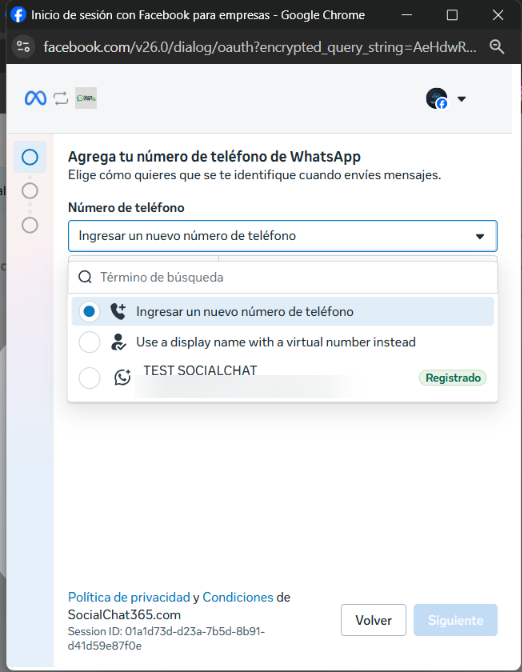
List of numbers. A number labeled “Registered” is already connected to another portfolio: don't choose it until you release it. 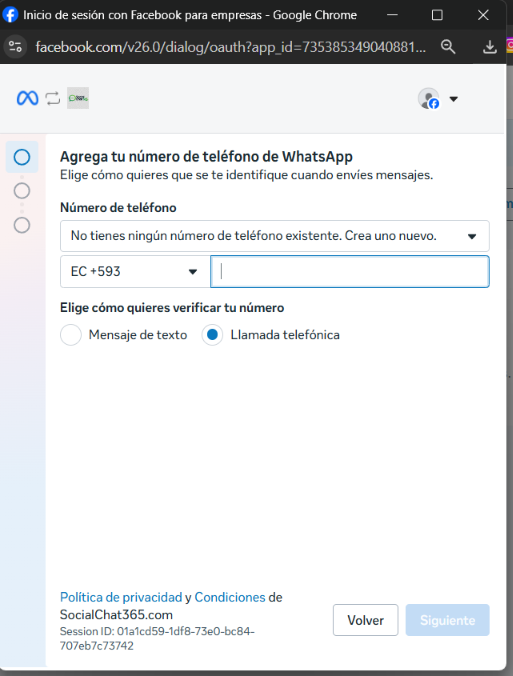
Path A: new number, verification by text message or call. - Path B only: confirm from your phone. Meta shows a QR code. On your phone, open WhatsApp Business: you will see a message from the official Facebook Business account; tap it and press Connect. If you don't see the message, go to Settings → Account → Business Platform. Scan the QR code or use the access code, and choose whether to share your chat history (the last 6 months).
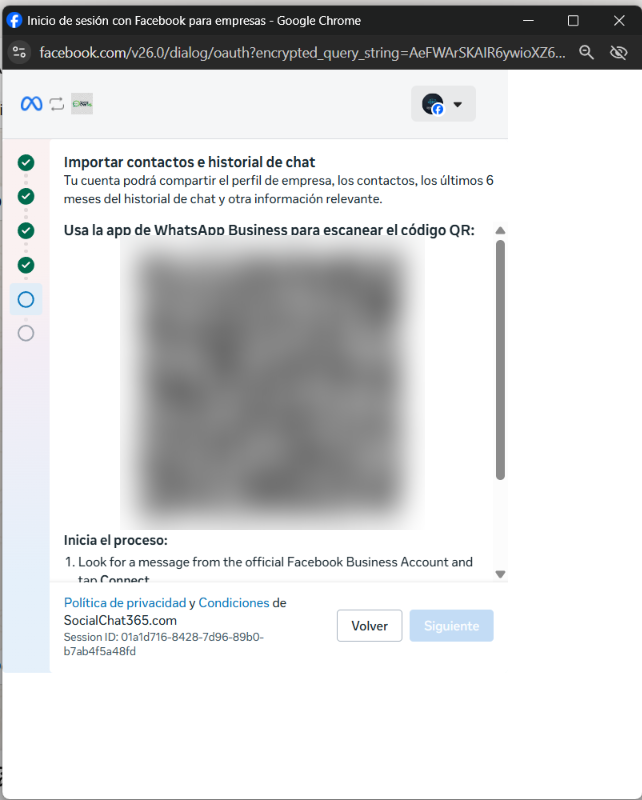
Path B: scan the QR code with the WhatsApp Business app (blurred in the image). 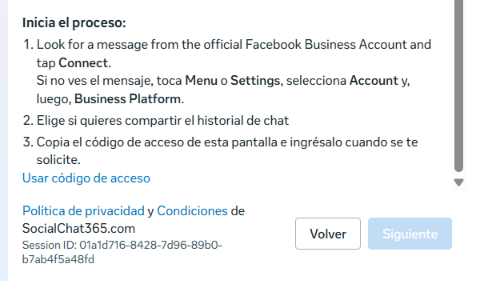
Meta's instructions to confirm from the app. - Review the profile: display name, category and time zone. For Ecuador choose America/Guayaquil, not another zone even if it has the same time. Read the warning about the name: if it is all in caps, it will be rejected later.
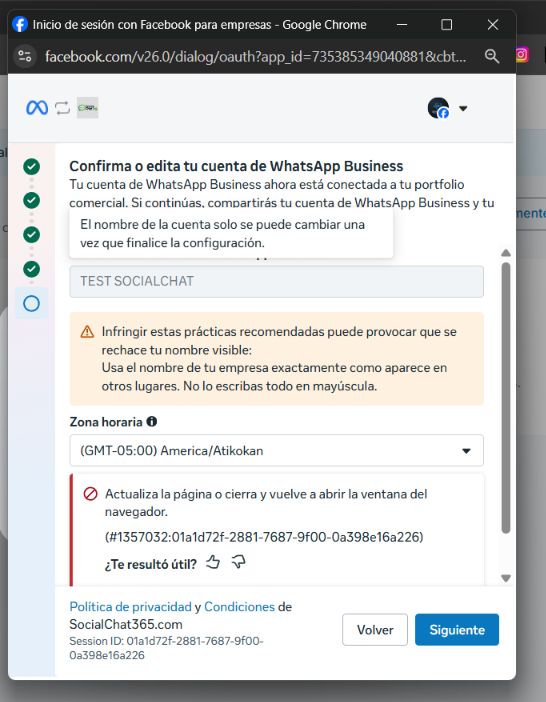
The name cannot be edited here. In this screenshot the time zone is also wrong and an expired-session error appears (see common errors). - Review the permissions and click Finish. The window closes and SocialChat365 shows “We connected +593…” with your business name.
- After connecting:
- If you will send templates or campaigns, add a payment card in WhatsApp Manager (business.facebook.com → WhatsApp Manager). Meta charges your card directly.
- Wait for the display name review; it is usually quick.
- Test: message your number from another phone. The message should appear in your SocialChat365 inbox.
5. What keeping the app means (coexistence)
- ✅ You keep replying from your phone. When you reply from the app, the message also appears in SocialChat365 and the AI assistant pauses in that conversation.
- ✅ What you send from the app is still free.
- 📥 If you agree to share your history, chats from the last 6 months are imported. Your contacts with WhatsApp are also shared. If you don't want a chat to enter the platform, delete it from the app before connecting.
- ❌ Meta turns off in the app: broadcast lists (existing ones become read-only), disappearing messages, “view once” and live location. Groups are not synchronized.
- ❌ WhatsApp for Windows is no longer supported. You can link other supported devices.
- ⚠️ Limit of 20 messages per second: more than enough to serve customers, but very large campaigns go slower.
- ⚠️ Open the app at least every 13 days and don't uninstall it, or Meta disconnects the number from the platform.
6. Costs
- Replying to a customer who wrote to you (within 24 hours): no Meta charge.
- Templates (messages you start, campaigns and reminders): Meta charges them directly to the card you register in WhatsApp Manager. Without a card, they can't be sent.
- Messages you send from the app in coexistence are still free.
7. Common errors
| What you see | Why | What to do |
|---|---|---|
| Your number appears labeled “Registered” with another portfolio's name | That number is already connected to another portfolio or platform | Release it first: go to business.facebook.com with that other portfolio → Settings → Accounts → WhatsApp accounts → remove the number. If it was coexistence, also disconnect it in the app (Settings → Account → Business Platform). |
| “Refresh the page or close and reopen the browser window” (with a number such as #1357032) | The window session expired, almost always because it stayed open too long or after another error | Close Meta's window, reload SocialChat365 and start again without long pauses |
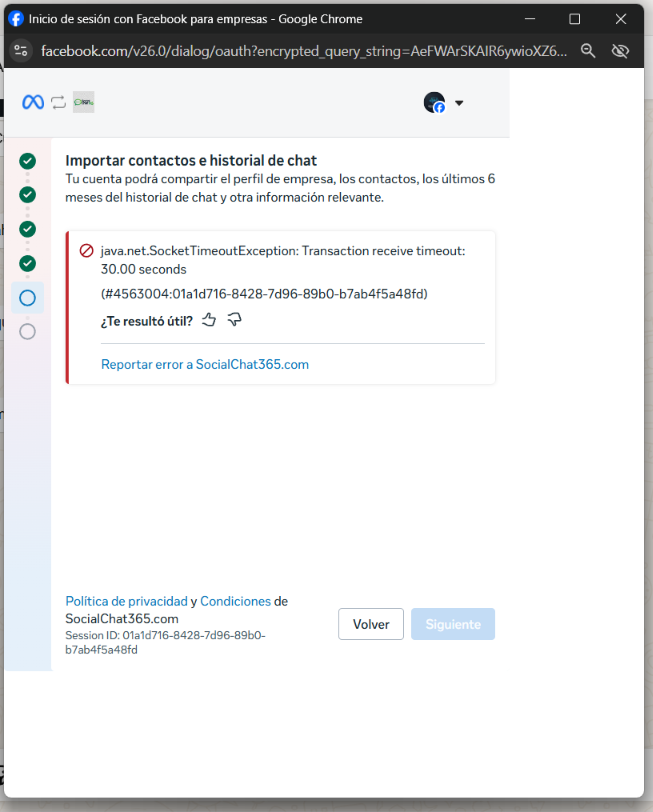
| “SocketTimeoutException… 30 seconds” | Meta took too long to respond | Click Back and repeat the step. If it persists, try later |
| Warning: “Don't write it all in capital letters” | It is a warning about the display name | Fix the name in the app (path B) or later in WhatsApp Manager |
| The verification code doesn't arrive | Number typed wrong (with the 0), no signal, or the SMS is delayed | Check the number, wait a minute or choose phone call |
| Meta doesn't accept your regular WhatsApp number | The connection needs a new number or one on WhatsApp Business | Move it to WhatsApp Business or delete the account on the phone (section 2) |
| Meta rejects coexistence | Outdated app or very new account | Update the app; if the account is new, use it for a while or connect a new number (path A) |
| “That number is already connected to another SocialChat customer” | It is already in another SocialChat365 account | Contact us to review it |
| The display name was rejected | It doesn't follow the rules in section 3 | Fix it in WhatsApp Manager → your number → Profile, and wait for the new review |
8. How to disconnect without losing your number
- Coexistence (path B): in the WhatsApp Business app → Settings → Account → Business Platform → Disconnect. Your number keeps working on the phone. Don't use “Delete my account”: that deletes your WhatsApp.
- SocialChat365 only (path A): contact us and we will help you remove the number from the platform.
- Also, in SocialChat365, deactivate the account under WhatsApp accounts.
This is an English translation. In case of discrepancy, the Spanish version prevails. Screenshots are shown in Spanish.